Login to your account
or
The mailbox user already exists
By clicking 'Download File,' you agree to our Terms and conditions and Privacy policy
officeOnlineAd
excel_online
File
Open Source Statement
Continue officeedit

Sheet Online

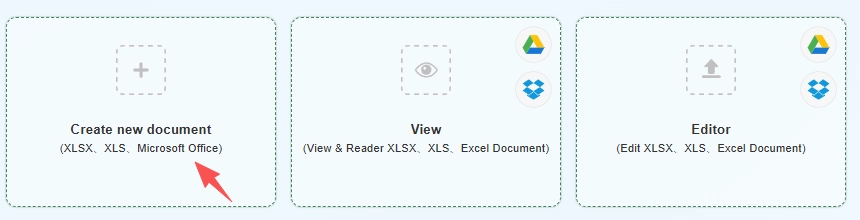
Create new document
(XLSX、XLS、Microsoft Office)
Create Document
Create Spreadsheets
Create Presentation
bg
Upload
google-drive
dropbox
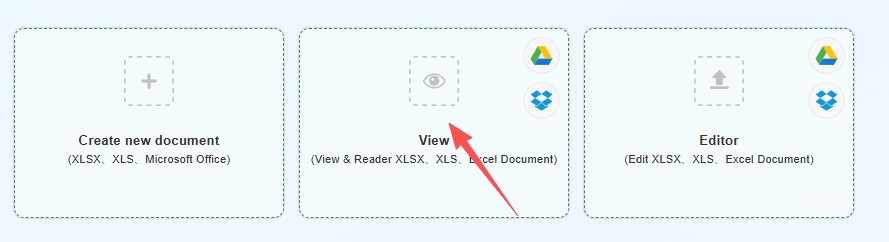
View
(View & Reader XLSX、XLS、Excel Document)
bg
Upload
google-drive
dropbox
Editor
(Edit XLSX、XLS、Excel Document)
upload img
Uploading,please wait ...
file_info
other view
aa.docx
close
Continue

XLSX & XLS Online — Create and edit spreadsheets in your browser

QwerPDF XLSX & XLS Online lets you open, create, and edit spreadsheet files in your browser without installing Microsoft Excel. Upload .xlsx or .xls files or start from a new workbook, then work with cells, common formulas, and multiple sheets in the online grid. This can help when you need a quick edit on a device where Excel is not available.

We use encryption in transit and process files on our servers; files are removed after a limited time following your session. When you are done, you can export to XLSX, CSV, or PDF for sharing. Very large or complex workbooks may load slowly or behave differently than in desktop Excel—check results that matter to you.

Advertisement

Advertisement
Formats in
.XLSX · .XLS
One Excel Online page
Create · Edit · View
Microsoft Office
Not required
Typical export
XLSX / PDF

Three ways to use Excel Online

Compared with installing Microsoft Excel or using the full Microsoft 365 suite, QwerPDF is built for short, focused tasks: start a file, fix cells, preview for review, export, and move on — without waiting for desktop software or navigating subscription-only flows.

Excel Online overview
Create

Create Excel Online

Start a new blank spreadsheet in your browser. Add data, use common formulas, and then Download as XLSX or PDF—no desktop install required for the typical flow.

Why use QwerPDF:

  • Everything starts on the same Excel Online page—tap Create when you land.
  • No dependency on whether this PC has Microsoft Office installed.
  • Ideal for simple budgets, quick tables, and drafts you can later open in Microsoft Excel if needed.
Start from one Excel Online page

Everything starts on the same Excel Online page—tap Create when you land.

No Microsoft Office on this PC

No dependency on whether this PC has Microsoft Office installed.

  1. Open Excel Online (the main QwerPDF Excel Online page).
  2. On that page, click the Create option to start a new blank spreadsheet.
  3. Enter data and basic formulas as supported by the online editor.
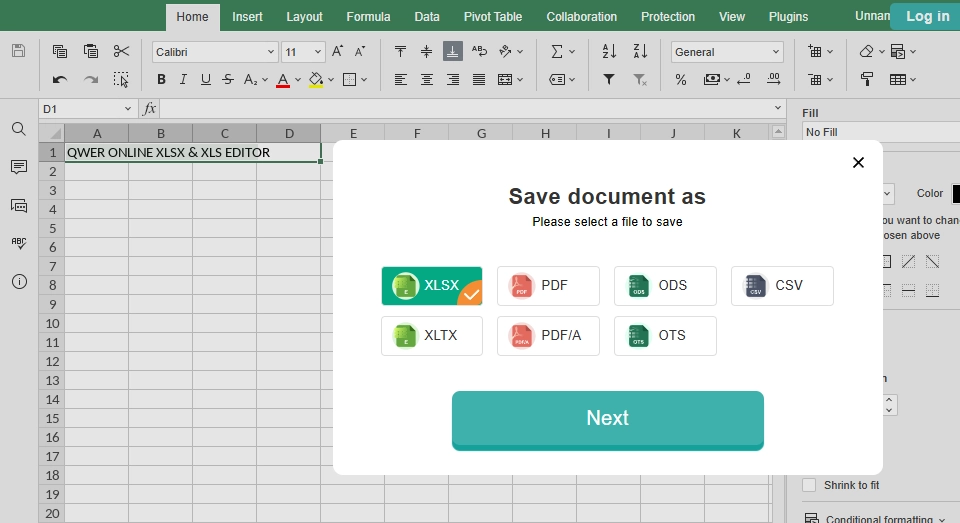
  4. Review in the browser, then click Download to save as XLSX or PDF (formats shown in the tool).

Optional: use our dedicated Create Excel File Online page if you prefer a create-focused screen—otherwise stay on Excel Online and use the button.

Microsoft Excel normally requires a local install or a Microsoft 365 plan for the full experience; you want a new sheet in seconds.

Create XLSX|XLS Online

Typical export options

XLSX
XLS
PDF
Share
Edit Word Online
Edit in the browser
• Single flow: upload → Next → edit → Download
• No Microsoft Office install on this machine
• Quick corrections and PDF handoff
Edit

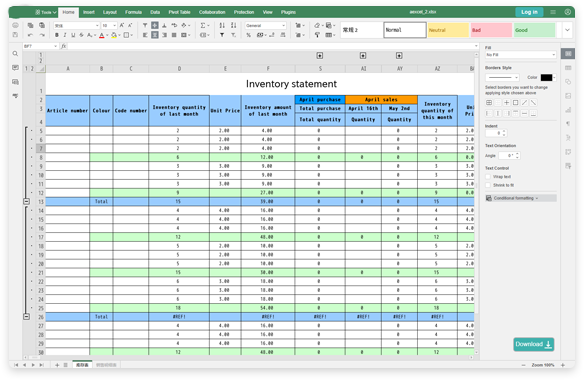
Online Excel Editor - XLSX,XLS

Upload an XLSX/XLS and make quick edits in the browser: update cells, fix formatting, and review sheets, then Download the updated file or export a PDF for sharing.

Why use QwerPDF:

  • Single flow: upload → Next → edit → Download.
  • You do not need to install or update Microsoft Office on the machine you are using.
  • Well suited to quick corrections and PDF handoff instead of full desktop analysis.
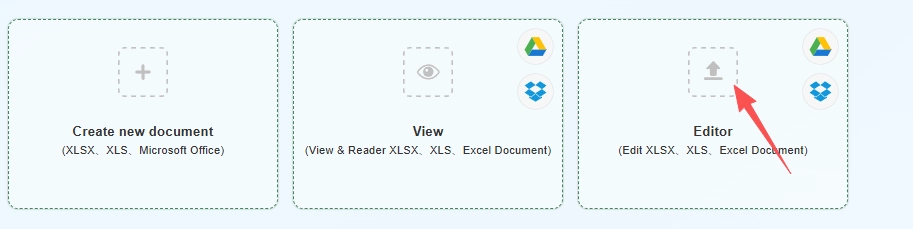
  1. Open Excel Online and upload your .XLSX or .XLS file.
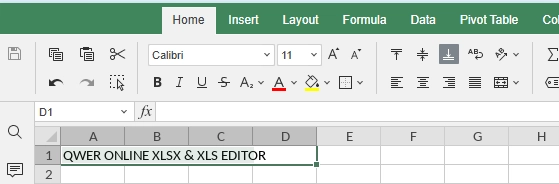
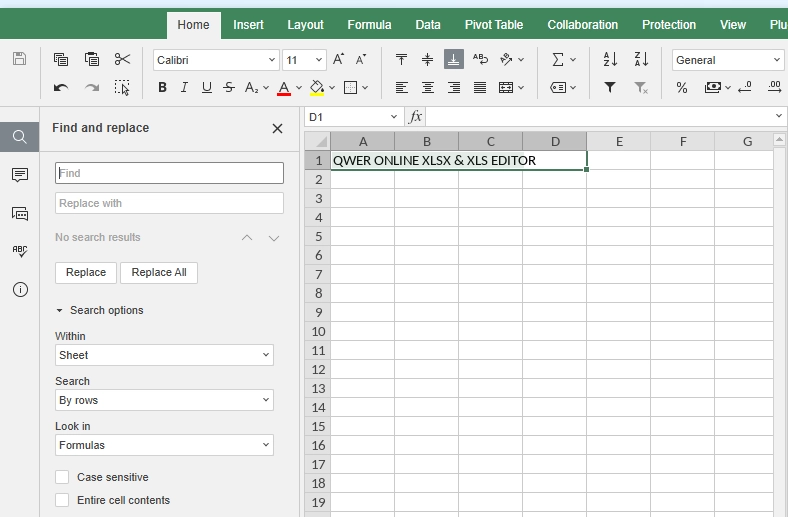
  2. Tap Next to open the spreadsheet editor grid.
  3. Edit cells, formulas, and sheets as supported—your changes stay in standard formats.
  4. Click Download to save as XLSX or PDF for sharing outside the browser.

Want a page that highlights editing? See Edit Excel Online.

Excel for the web and desktop Excel excel at deep collaboration and power features; you only need to fix cells or export PDF.

Outline & navigation
View Word Online
View

View & Reader Excel File Online

Open a spreadsheet to view and review quickly in your browser. Use sheet tabs and zoom to read comfortably, then Download a copy when you’re done.

Why use QwerPDF:

  • Lightweight preview path on the same URL as edit and create.
  • Often usable without a login for basic viewing workflows (per site policy).
  • Preserves common layout elements better than a raw browser “open file” preview for many spreadsheets.
  1. Open Excel Online on any device with a modern browser.
  2. Upload your file, then follow Next to enter preview or read mode when the tool offers it.
  3. Use sheet tabs and zoom to review comfortably—ideal when you only need to view XLSX online without launching Microsoft Excel.
  4. Tap Download if you need a copy after reviewing.

Prefer a viewer-only screen? Try View Excel Online—or stay on Excel Online and use the on-page controls.

Opening a file in Microsoft Excel just to read it can mean long startup times and license prompts; you want a fast preview.

What you should know about Excel Online, XLSX files, and Microsoft Office

Excel Online spreadsheet tools

People look for Excel Online, an online spreadsheet editor, or a way to edit XLSX online when they need to finish a task now—not when they want to manage installers, disks, or subscriptions. Maybe you are on a shared PC without Microsoft Office, or a work device that blocks new software. QwerPDF Excel Online keeps spreadsheets in the workflow you already use: open an XLSX or XLS in the browser, make changes, and download—without treating every job like a full Microsoft 365 project.

How browser-based spreadsheet editing differs from desktop Microsoft Excel

Installed Microsoft Excel is built for heavy analysis: advanced formulas, Power Query, pivots, macros, and deep links to the rest of Microsoft 365. An Excel Online tool like QwerPDF focuses on common everyday edits—cells, basic formulas, tables, and simple layouts—and on getting you to a clean XLSX or PDF export.

That does not mean “less serious.” Small budgets, class assignments, and simple trackers spend most of their life in standard grids. For those jobs, edit in the browser, save, and share—then open the same file in desktop Excel later if someone needs advanced features.

What is an XLSX file—and why might it look slightly different sometimes?

An XLSX file stores sheets, cells, and formatting rules in an Open XML package. Most spreadsheets open consistently across Excel and browser tools, but differences can show up with missing fonts, complex conditional formatting, external links, or very large workbooks. Older XLS files are legacy and may behave differently.

If numbers look right but layout shifts, check fonts and column widths first. If formulas use add-ins, macros, or uncommon functions, do a final verification in desktop Excel before you publish results.

Practical tip: If your workbook relies on VBA macros, external connections, or advanced Excel features, finish those steps in installed Microsoft Excel. QwerPDF Excel Online is built for everyday XLSX and XLS content—not every niche feature in the full Office suite.

Who benefits most from QwerPDF Excel Online?

Students and teachers can open spreadsheets on lab machines. Remote workers can tweak a workbook without installing Excel. Small businesses can export a PDF report without buying another Microsoft 365 seat for a shared PC. Anyone who has thought, “I just need to change a few cells” can take a shorter path in Excel Online than through a full desktop suite.

Excel Online vs Excel for the web (Microsoft’s browser Excel)

Excel for the web is powerful if you already live inside OneDrive and a Microsoft 365 subscription. QwerPDF Excel Online is aimed at file-first workflows: upload an XLSX, click Next, edit or view, then Download.

Handing off a file to someone who only uses Microsoft Excel

Most colleagues still expect an XLSX attachment and assume they will open it in Microsoft Excel. After editing online, download the XLSX, give it a clear file name, and share it as usual. If the workbook uses uncommon fonts or complex formatting, note that in your message so they can double-check on their side.

When the goal is “no more edits,” exporting a PDF can be safer: the layout is fixed and numbers won’t be accidentally changed. When the goal is “please edit this,” keep XLSX so formulas and sheets remain editable.

PDF or XLSX: which download should you pick?

XLSX stays editable and is best for ongoing work. PDF is best for final sharing or printing. Many teams keep both: XLSX for internal work and PDF for external distribution.

Using Excel Online on a borrowed PC or shared computer

QwerPDF Excel Online is built for desktop browsers on a laptop or PC where installing Microsoft Office is not an option. In those situations, opening your spreadsheet in the browser beats hunting for an installer or signing into someone else’s Microsoft 365 account.

Files from Google Sheets, LibreOffice, or school templates

Not every spreadsheet starts in Excel. Files exported from Google Sheets or LibreOffice are often valid XLSX, but some formatting or formulas may translate differently. QwerPDF Excel Online can still help for quick fixes and exports.

When the file looks wrong: a short checklist

If layout looks off, check fonts and column widths. If formulas look wrong, look for external links, add-ins, or unsupported functions. For very old XLS files, consider converting to XLSX in desktop Excel before relying on any browser tool for final output.

Safety, privacy, and smart habits

Treat any online editor with the same care as email or cloud storage: upload only files you are allowed to send to that service. Connections use encryption in transit; files are processed on our servers and removed after a limited time per the live site policy. This static HTML sample shows structure and copy only—it does not run the real tool.

Fewer steps to your first edit: QwerPDF Excel Online vs Microsoft 365 in the browser

Everyone’s setup is different—your Microsoft 365 login, bookmarks, and browser will change the exact click count. The table below still helps you see the big picture: QwerPDF Excel Online is built around one page, your file, and clear buttons (Next, Download), while Excel for the web usually assumes you already live in Microsoft’s cloud. Use the chart as a quick visual hint, not a stopwatch.

Excel Online tools
Stage Typical Microsoft 365 (Excel for the web) QwerPDF Excel Online
Account Often requires Microsoft account sign-in. Designed for simple flows without tying to Microsoft identity (see live site for current policy).
Install No desktop install for the browser app; ecosystem still centered on Microsoft. No Microsoft Office install; runs as a web tool.
Core loop Open OneDrive / app launcher → Excel → file. Open the Excel Online page → upload your XLSX or XLSNext → edit or preview → Download.
Best for Deep Microsoft 365 collaboration. Fast edits, preview, and export for standard spreadsheets.

When Microsoft 365 in the browser is the better fit

Microsoft 365 shines when you stay signed in and your files already live in OneDrive or SharePoint. It’s also the right place for real-time co-authoring, comments, enterprise templates, and admin controls. QwerPDF Excel Online targets a different job: “I have a local XLSX, I need to change it now, and I do not want a full Office session.”

Beyond step count: collaboration, autosave, and where the file lives

Dimension Excel for the web (Microsoft 365) QwerPDF Excel Online
Real-time co-editing & comments Strong: multiple authors, presence, threaded comments—built for shared work. Focused on single-user edit flows; not a full collaboration suite.
Autosave & version history Deep integration with cloud save points and restore (within Microsoft’s ecosystem). You typically Download when finished; rely on your own file naming and backups.
Default home for the file Natural path: file stays in OneDrive / SharePoint with sharing links. Natural path: upload → edit → Download to your machine (or share the exported file yourself).
Org policy & compliance Often required when your employer mandates Microsoft tenant, DLP, or retention labels. Useful when policy allows a browser tool for a quick fix; always follow your company’s data rules.

At a glance: which path feels lighter for a quick XLSX fix?

For a single local XLSX you already have on disk—something like “fix three cells and send it back”—these are the differences people usually notice first. Numbers are illustrative.

What you are comparing Typical Excel for the web (browser, not already signed in) QwerPDF Excel Online
Account gate before you touch the file Usually Microsoft account sign-in (and sometimes tenant or 2-step verification). Often no Microsoft sign-in for a basic session—open the page and upload (see live site for current rules).
Rough steps to open a local file from your PC Sign in → open Excel / Microsoft 365 launcher → Open → This device / Browse → pick file (often 6–10+ actions, plus loading). Open Excel Online → upload XLSX or XLS → Next (often about 3–4 actions).
Where the workflow “lives” Tightly tied to OneDrive, SharePoint, or “recent online files”. Centered on one page: your file goes up, you edit, you Download—closer to a tool than a full Microsoft 365 dashboard.
Best match for Teams that already pay for Microsoft 365 and co-edit in the same tenant. Anyone who wants to edit a spreadsheet once in a while without a full Office session.

How to read the bars below: shorter bar = less perceived friction on that axis (not milliseconds). Blue = QwerPDF; gray = Microsoft’s browser Excel path when you begin signed out.

If you are already signed into Microsoft 365 in that browser, the gray bars can shrink a lot—this comparison targets the common “borrowed PC / first visit today” case.

Frequently asked questions

How do I edit Excel online with QwerPDF?
To edit Excel online, open Excel Online, upload an XLSX or XLS, click Next, make changes in the grid, then Download your updated file—no desktop Microsoft Excel install required for typical edits.
Is there an XLSX editor online for quick changes?
Yes. QwerPDF works as an xlsx editor online for many everyday tasks like editing cells, formatting tables, and making small fixes. If your workbook uses macros, complex add-ins, or unusual features, double-check the result after download in desktop Excel.
Can I edit an Excel file online in the browser (XLSX / XLS)?
Yes. Upload your spreadsheet, click Next, edit in the browser, then download. This covers “edit excel file online”, “edit xlsx online”, and most standard XLSX/XLS workflows.
How do I open an Excel file online to view it?
If you only need to view, use our Excel viewer pages (for example “online excel viewer”, “excel viewer online”, or “view xls file online” use cases). For editing, use Excel Online: upload → Next → edit → Download.
Do I need a Microsoft account to use Excel Online on QwerPDF?
No Microsoft account is required for typical QwerPDF usage. If the live site shows optional sign-in, limits, or notices for your session, follow the on-page rules.
Is QwerPDF the same as Microsoft Excel Online / Excel for the web?
No. QwerPDF is an independent browser tool. Microsoft Excel for the web is a Microsoft service and often assumes a Microsoft account and cloud storage. QwerPDF focuses on a lightweight, file-first flow: upload (or Create) → Next → edit/preview → Download.
Can I create an Excel sheet online for free?
You can create excel sheet online by choosing Create on the Excel Online page, then downloading when finished. Any usage caps or “free” conditions are shown on the live page.
Can I make a spreadsheet online free and download it?
Yes. Start from Create, enter your data, and download when done. This matches “make a spreadsheet online free” and “create spreadsheet online free” intent for simple workbooks.
What is an online Excel sheet editor?
An online excel sheet editor is a browser-based tool that lets you open and edit spreadsheets without installing Excel—usually best for quick cell edits, basic formatting, and light formulas.
Will formulas and formatting stay the same after download?
Most standard formatting and common formulas stay consistent, but differences can happen with macros, external links, add-ins, unsupported functions, very large workbooks, or fonts. For important files, download and verify in desktop Excel.
What does “online Excel opener” or “open XLSX online” mean?
It means opening a spreadsheet in the browser. With QwerPDF, you can upload an XLSX/XLS, click Next, then view or edit and download the result.
Can I read an XLSX file online (xlsx reader online)?
Yes. For “xlsx reader online” intent, use our viewer flow to open and read sheets in the browser. If you need to change values, switch to Excel Online editing and download the updated file.
Can I export PDF from Excel Online after editing?
Yes. After editing, use Download and choose PDF if it’s available in your session. For a dedicated conversion flow, you can also use Excel-to-PDF tools.
How do I download the edited XLSX after I finish?
After you finish editing or previewing, use the Download control and pick the format you need (for example XLSX for continued editing or PDF for sharing).
Is Excel Online on QwerPDF free to use?
QwerPDF Excel Online is built for everyday browser-based spreadsheet tasks. Any free limits, usage caps, or upgrade options are shown on the live page—check the current wording before relying on it for heavy daily work.
QWER PDF All Tools
advan

QwerPDF - Document Online is a Powerful Online Word Editor that Allows You to Quickly Create,Open & Edit, Delete and Modify Your Word Documents Online.

Secure and Almost 100% Accurate keeping the Layout For Word document,Support DOC.DOCX.ODT file format

No installation, No registration -it's 100% Free