
 Ferramentas

 Word ONLINE
 Sheet ONLINE
 Presentation ONLINE
edit_pdf
Editar PDF Online
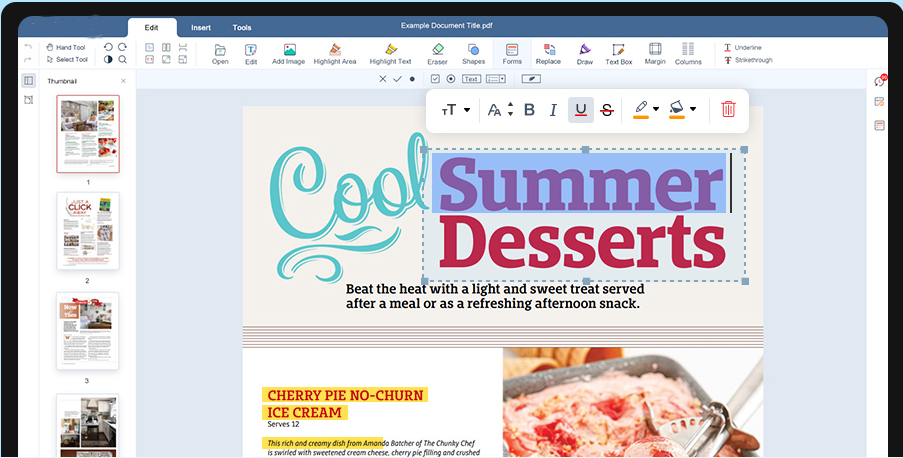
The All-In-One Online PDF Editor makes it easy to edit, merge, and export to Word.
Add text, images, shapes, or freehand annotations to PDFs. Customize fonts, colors, sizes, and highlights. Delete or modify existing text, rearrange, rotate, or delete pages, and more.
Esta función es compatible con la versión del sistema 15.7.2 y superior, si no es así, vaya a la configuración para actualizar el sistema.
 Google Drive
 Dropbox
Carregando arquivo ...
Não feche o seu navegador. Espere até que seus arquivos sejam carregados e processados! Isso pode levar alguns minutos. :)
Archivo
Open Source Statement
Open Source Statement
Our editor is built on ONLYOFFICE Docs Community, and we would like to express our gratitude to ONLYOFFICE for its excellent contribution.
The modifications we have made to the editor have been open-sourced in accordance with the ONLYOFFICE Docs Community License. We welcome everyone to use it.
The code repositories for our modifications are as follows:
https://github.com/starrysky95/DocumentServer
https://github.com/starrysky95/server
https://github.com/starrysky95/build_tools
For more information on ONLYOFFICE Docs Community, please refer to the official repository:

Here Are Some Of The Features Of Our PDF Editor







Universal Online PDF Edit
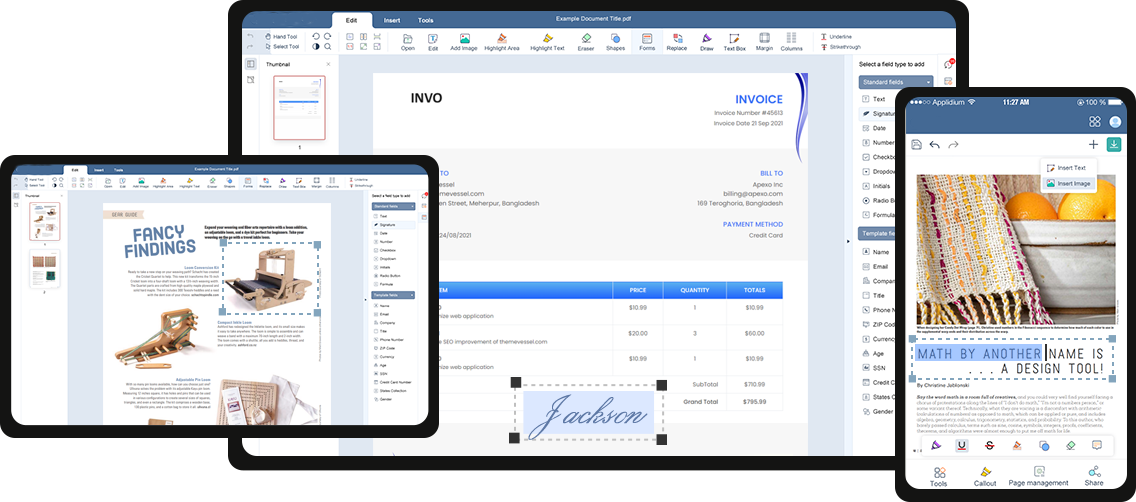
All Your Devices
Level up your document productivity across all major platforms Windows, Mac, iOS and Android devices
How To PDF Edit Document?
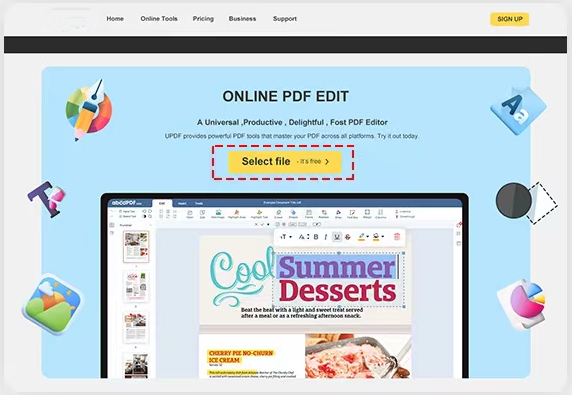
1.Select your PDF document
Click the Uplaod File button to upload your pdf document to
our editor and edit it easily.
our editor and edit it easily.
2.Edit PDF online
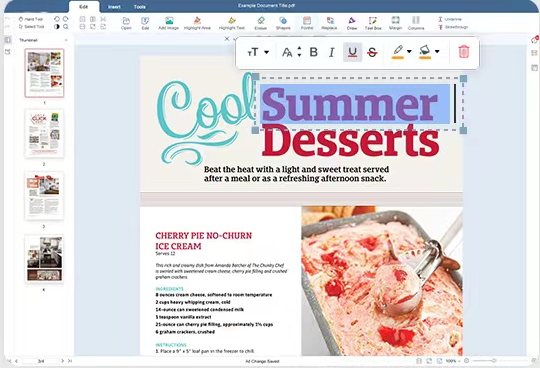
When you enter the editing interface, you'll find our comprehensive array of tools at the top. We offer text editing, insertion and deletion, image addition, text highlighting, eraser tool, form fields, pen tool, signature feature, and more. Additionally, you can add or delete pages, apply watermarks, stamps, artistic fonts, and various other functionalities to tailor your editing experience to your needs.
3.Done and Download
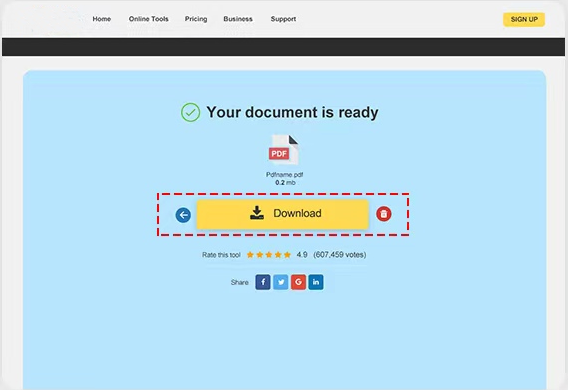
After editing the text, click on the "Done" button located on theright-hand side of the screen to save the changes you made tothe PDF document.
 Próximo