Login to your account
or
The mailbox user already exists
By clicking 'Download File,' you agree to our Terms and conditions and Privacy policy
loadToolAd
upload_file

Upload File

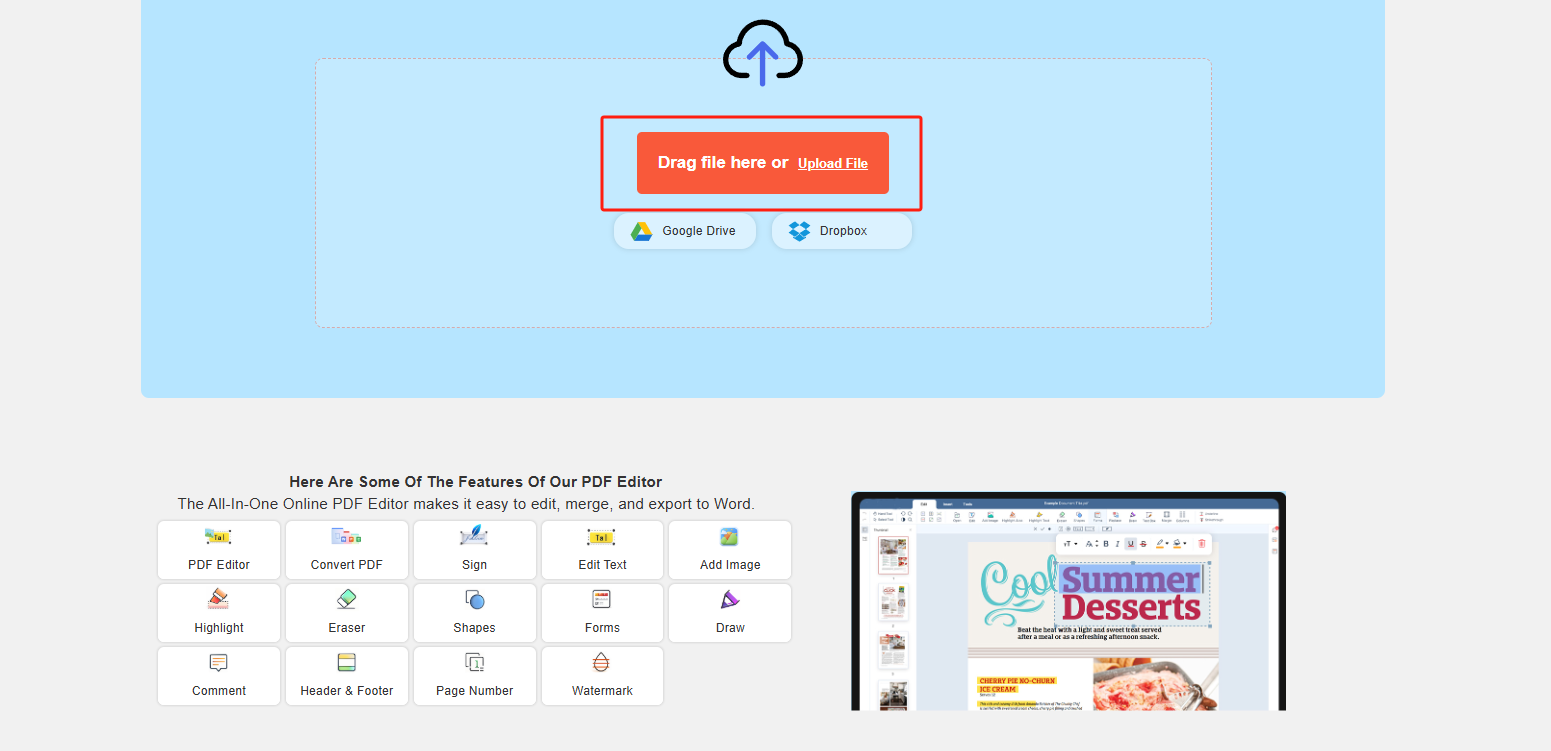
Upload a PDF to edit online, convert it to other formats, add images, modify text, highlight, sign, and more—then preview and download your file when you are ready.
This function supports system version 15.7.2 and above, if not, please go to the settings to upgrade the system.
upload
google-drive Google Drive
dropbox Dropbox
File Loading ...
0%
Do not close your browser Wait until your files are uploaded and processed! This might take a few minutes. :)
File
Open Source Statement
Advertisement
How to Upload File
Step 1:Upload
Upload your PDF to QwerPDF from your device or drag it into the upload area.
th
th
Step 2:Edit or Convert
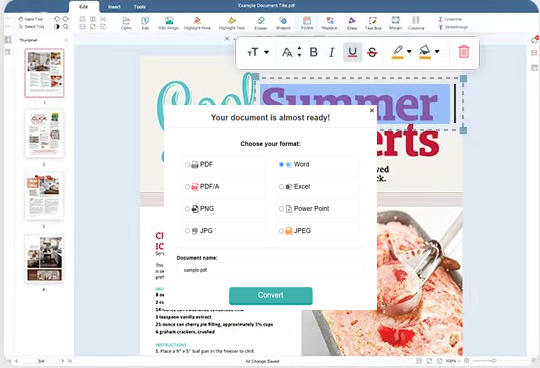
Use the editor to change text, add images, annotate, or sign—or pick a format to convert your PDF.
Step 3:Download
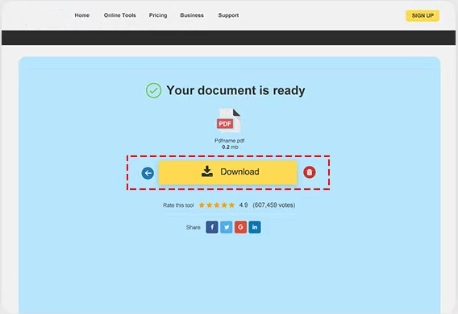
Export or download your file: continue editing, save as PDF, or get Word, Excel, PowerPoint, or image output.
th

How to edit PDF files online for free?

01 What is the easiest way to edit a PDF?

QwerPDF offers a free online PDF editor. Upload your PDF and edit text, images, and annotations directly in your browser. Add signatures, highlight text, insert shapes, and manage pages. No software installation required.

02 Can I edit text in a PDF document?

Yes! QwerPDF's online editor lets you modify, delete, or add text directly in PDFs. Change font styles, sizes, colors, and alignment. All edits are processed locally in your browser for privacy.

03 Does the PDF editor support adding images?

Yes! Insert, resize, or replace images and logos in your PDF. The editor supports common image formats and maintains quality. Update visual content without recreating the entire document.

edit_pdf

How to edit PDF online without software?

Learn how to edit PDF documents directly in your browser, without installing any desktop software.

  • Yes, with QwerPDF you can upload a document, adjust text, images, and pages, then save your updated PDF – all from a browser window.
  • You don’t need to install additional programs. Just open QwerPDF in a modern browser, drag in your file, and use the on‑screen tools to make changes.
  • Common tasks like correcting typos, adding signatures, inserting images, or rearranging pages can all be handled online through QwerPDF’s editor.
edit_pdf

What is the best way to edit PDFs?

For the smoothest experience and most precise editing, QwerPDF is designed to work best on desktop and laptop browsers.

Why is editing on a computer recommended?

Editing on a desktop or laptop gives you a larger screen and more accurate cursor control, so arranging elements, adjusting layouts, and selecting text are all easier and more precise.

How do I start editing my PDF on a computer?

Simply open QwerPDF in a modern browser such as Chrome, Edge, Firefox, or Safari on your Windows, macOS, or Linux computer, upload your PDF, and select the editing tools you need.

Any tips to make editing smoother?

For the best experience, use the latest version of a modern browser, work on a stable internet connection, and keep QwerPDF open on a desktop or laptop so all editing tools stay responsive and easy to use.

Edit PDF Online - Free PDF Editor

Free Online PDF Editor

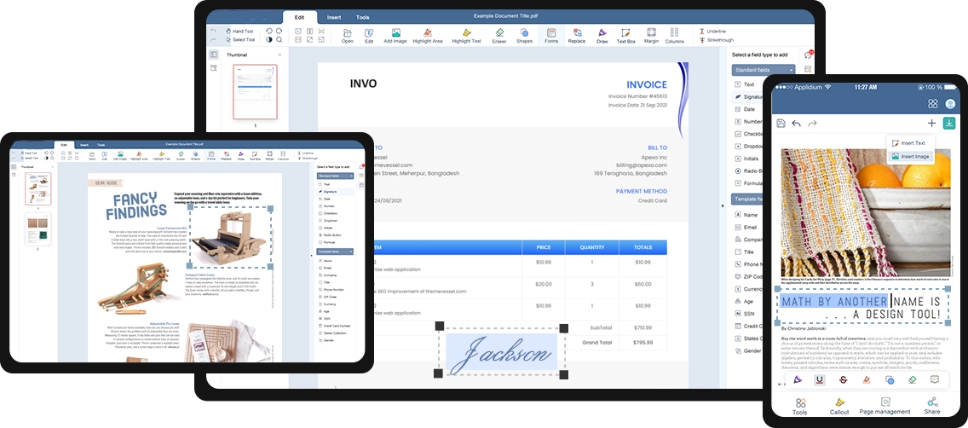
QwerPDF offers a free PDF editor. Edit text, images, and annotations in your browser. No installation required.

Edit text

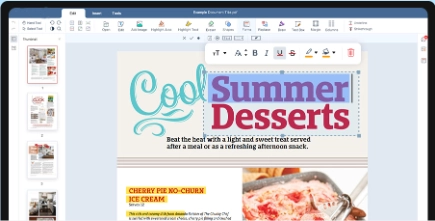
Modify, delete, or add text directly in PDFs. Change fonts, colors, sizes, and alignment with professional precision.

edit_pdf

Manage pages

Add, delete, reorder, or rotate pages. Insert watermarks, page numbers, and headers/footers to customize your document.

edit_pdf
Edits
Text · images · marks
Best for
Small fixes
Not a full
InDesign replacement
Then
Compress · Sign · Protect

PDF editor online — fix typos, images, and highlights in the browser

Edit PDF online — lightweight PDF editing in the browser

Edit PDF online, PDF editor, modify PDF, and PDF text editor searches come from users who need a two-line fix without buying Acrobat. QwerPDF targets surgical edits—replace a date, swap a logo, highlight a clause—while heavy layout rebuilds still belong in Word or InDesign source files.

Real text vs outlined vectors

If text is outlines or inside a scan, you cannot “edit” like Word—cover with white boxes and type new text or run OCR desktop-side first.

Selectability test in a PDF reader predicts edit success.

Redaction vs white boxes

White rectangles do not remove underlying text—use real redaction tools for PII removal.

Highlights are annotations—flatten when you need static appearance.

Backup: Download original under a new filename before experimenting.

Signatures

Editing invalidates prior digital signatures—duplicate before editing.

Rotate and crop scans

Deskew and rotate pages when scans arrive crooked from mobile cameras.

Crop carefully—cropping does not redact content outside the view in all tools.

Images

Replace raster images when marketing updates charts—watch file size after swaps.

Links

Update stale URLs after product rebrands—click-test after edit session.

SEO

pdf text editor online, edit pdf without adobe, modify pdf online, annotate pdf online.

When to use PDF to Word instead

If whole paragraphs need rewriting, PDF to Word may be faster than patching many text boxes.

How to sign a PDF online for free?

01 What is the easiest way to sign a PDF document?

QwerPDF offers a free online e-signature tool. Upload your PDF, create or upload your signature, place it on the document, and download the signed file in seconds. No registration or software installation required.

02 Can I sign a PDF without printing and scanning?

Yes. With QwerPDF you sign PDFs completely online. Draw your signature with mouse or touch, type your name and choose a style, or upload an existing signature image — all directly in your browser.

03 Is online PDF signing secure?

QwerPDF processes files locally in your browser whenever possible. When uploads are required, transfers are encrypted with SSL/TLS and files are deleted after processing, keeping your signed documents private.

sign

How to add a watermark to a PDF online?

Add a text or image watermark to your PDF in your browser — choose position, size, rotation, and opacity, then download the updated file.

  • Upload your PDF, add a text or image watermark, and export the new PDF — no software installation needed.
  • You can control where the watermark appears (center/corners), adjust opacity and rotation, and apply it to all pages or only selected pages.
  • For privacy, QwerPDF runs many edits in your browser. When an upload is required, transfers are encrypted and files are deleted after processing.
watermark

How to fill out a PDF form online?

01 What is the easiest way to fill in a PDF form?

Upload your PDF to QwerPDF and type directly into form fields (text boxes, checkboxes, and dropdowns). When you're done, download the filled PDF in seconds.

02 What if my PDF is not a fillable form?

If your PDF doesn't have interactive fields, you can still fill it by adding text boxes and marks on top of the document, then export a new PDF with your entries.

03 Will my form entries stay in the PDF after downloading?

Yes. Your filled content is saved into the exported PDF so it displays consistently when shared or printed.

Form

How to draw on a PDF online?

Use the Draw tool to add freehand annotations to a PDF with your mouse or touch — great for quick markups and reviews.

  • Yes. Upload your PDF, choose the Draw tool, and sketch directly on the page. It works well for circling items, underlining, and quick notes.
  • Adjust pen color and thickness, undo/redo changes, and draw on multiple pages before exporting your updated PDF.
  • Your drawings are embedded in the exported PDF so they stay visible in any PDF reader.
PDF to Word

How to add shapes to a PDF online?

01 How can I add arrows, boxes, and circles to a PDF?

Open the Shapes tool on QwerPDF, upload your PDF, and insert arrows, rectangles, circles, and lines anywhere on the page to clearly mark content.

02 Can I customize the style of shapes in my PDF?

Yes. Change color, border thickness, size, and position of each shape, and combine shapes with text and highlights for precise document reviews.

03 Will the shapes stay in my PDF after downloading?

All added shapes are saved into the exported PDF, so your annotations remain visible in any standard PDF reader.

PDF to Word

How to highlight text in a PDF online?

Highlight important content in your PDF to make reviews faster and easier — no Acrobat required.

  • Yes. Upload your PDF to QwerPDF, choose the Highlight tool, and drag over the text or area you want to mark.
  • Pick different highlight colors, add multiple highlights across pages, and remove or adjust highlights before exporting.
  • Highlights are saved into the exported PDF so your markup stays visible when sharing or printing.
Highlight

How to add headers and footers to a PDF online?

01 How do I put the same header or footer on every PDF page?

Upload your PDF to QwerPDF, enter your header or footer text, choose where it appears (top/bottom, left/center/right), and apply it across all pages or selected ranges.

02 Can I customize the style of PDF headers and footers?

Yes. Adjust font, size, alignment, and margins, and preview how the header or footer looks before exporting your updated PDF.

03 Will the header and footer stay in my PDF after downloading?

Once exported, your headers and footers are embedded in the PDF, so they appear correctly in any reader and when printed.

Header and Footer

How to add page numbers to a PDF online?

Insert page numbers into a PDF with flexible position and formatting — ideal for reports, contracts, and printed documents.

  • Upload your PDF, open the Page Numbers tool, choose a position (e.g., bottom-right), and export the new PDF with numbering applied.
  • Set the starting number, choose which pages to number, and adjust style options so the numbers match your document layout.
  • The page numbers are embedded in the exported PDF, so they display correctly on any device and in print.
Page Number

How to PDF Editor

Free PDF Editing Online

QwerPDF helps you edit PDF files online. Add text, images, signatures, annotations, and more. Fast, free, and secure.

Step 1:Upload
Upload Files to our Online PDF Editor
add file
Edit
Step 2:Click 'Edit'
You can delete or Add text, images, shapes or freehand annotations as you wish
Step 3:Click 'Save' to Download
You can online preview, Editor or Download your files
add file
Review converted PDF as Word document

PDF editor — Frequently asked questions

How do I fix a typo in a PDF without the original Word file?
Upload to QwerPDF edit PDF, select the text box or overlay correction tool if provided, adjust, download. Real text PDFs behave better than scanned pages where you must patch visually.
Why can’t I edit text that looks like text on screen?
It may be outlined vectors or part of an image. OCR or cover with a white rectangle plus new text may be needed—desktop Acrobat has richer reflow tools for hard cases.
Can I replace a logo image across all pages?
Browser editors may require per-page edits. For global brand swaps, desktop PDF or source file edits are faster.
Will edits break digital signatures?
Yes—any content change invalidates prior signatures. Edit unsigned copies; keep signed gold masters.
How do I highlight or underline for review?
Use highlight/underline annotations in the editor if exposed; these are often comment-layer changes you can delete later.
Can I add text boxes for missing form labels?
Yes for visual fixes, but screen readers may still lack proper tags—accessibility fixes may need Acrobat Pro tagging.
What about redacting sensitive paragraphs?
True redaction removes underlying text, not just white rectangles. If unsure, use dedicated redaction mode or counsel-approved tools.
Can I rotate skewed scanned pages?
If rotate page is offered, yes; fine deskew may need desktop scan software.
Why does edited text use a different font?
Editors substitute nearest available font when originals are subset or licensed. Match family manually if brand-sensitive.
Can I edit PDF on iPad?
Possible in mobile browsers for small tweaks; precision work is easier with mouse and large screen.
How do I undo a bad edit?
Re-download original backup and restart. Browser sessions may not offer deep multi-step undo like desktop apps.
Can I merge edited PDF with another?
Yes—finish edits, download, then merge PDFs in QwerPDF.
Does QwerPDF support multi-user co-editing?
No—treat as single-user quick fixes; collaboration belongs in Google Docs or SharePoint with source files.
What if PDF is XFA?
XFA editing is limited in many web tools—open in Acrobat or ask sender for AcroForm version.
After edits, should I compress before email?
If images were added, compress PDF to keep attachment size reasonable.

Join 12,000,000+ productive professionals

Who trust QWER PDF for fast, accurate conversions.

All Tools
Here Are Some Of The Features Of Our PDF Editor
The All-In-One Online PDF Editor makes it easy to edit, merge, and export to Word.
th
Universal Online PDF Edit
All Your Devices
Level up your document productivity across all major platforms Windows, Mac, iOS and Android devices
th
Save document as
Please select a file to save
 online WORD Word
 online Sheet Sheet
 online Powerpoint Powerpoint
 online close
Your document is almost ready!
Choose your format:
Document name:
File Loading ...
0%
Do not close your browser Wait until your files are uploaded and processed! This might take a few minutes. :)
 online close